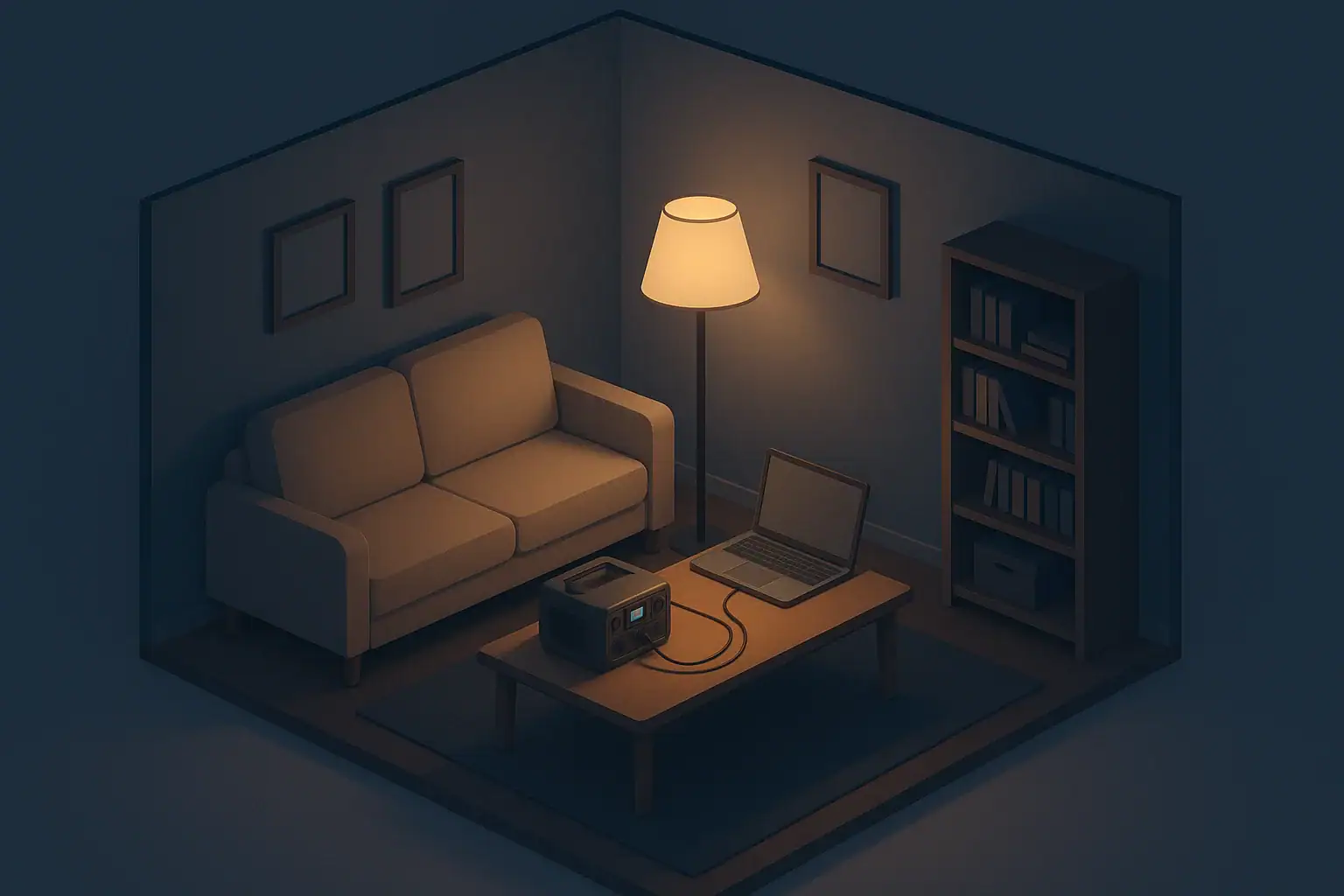
Why Home Office Backup Power Matters
Working from home makes power outages more than an inconvenience. A short blackout can interrupt meetings, corrupt files, and shut down your internet connection. For many people, a simple backup solution is enough to bridge brief outages or safely shut down equipment.
Two common options for a home office are:
- A desktop UPS (uninterruptible power supply) that sits under your desk and keeps devices running for a short time when power cuts out.
- A portable power station, which is a rechargeable battery box with outlets and ports you can move around your home.
Both can help you stay productive and protect your devices, but they serve slightly different roles. Understanding how they work, their limits, and how they fit into a realistic preparedness plan makes it easier to choose the right backup for your home office.
What Is a Desktop UPS?
A desktop UPS is a small box that plugs into the wall and provides battery backup and surge protection for plugged-in equipment. It sits in-line between the wall outlet and your devices.
How a Desktop UPS Works
In normal conditions, a UPS passes utility power through to your devices while keeping its internal battery charged. When power drops or becomes unstable, it switches to battery power almost instantly. This near-instant switch keeps your devices from shutting off abruptly.
Most home-office UPS units are designed to:
- Protect against sudden shutdowns that can corrupt files.
- Give you minutes, not hours, to save work and power down safely.
- Smooth out minor power fluctuations.
Typical Uses in a Home Office
Common home-office setups for a UPS include:
- Desktop computer and monitor.
- Internet modem and router.
- Network storage device or external hard drive.
- Small accessories like a VoIP phone base.
Instead of trying to run your entire home on backup, a UPS focuses on keeping critical electronics powered long enough to ride out brief blips or shut down in a controlled way.
Strengths and Limitations of a UPS
Strengths:
- Automatic switchover with no manual steps.
- Typically lower upfront cost than a large power station.
- Designed to stay plugged in 24/7 with built-in surge protection.
- Good for apartments and small spaces where you just need a few minutes of backup.
Limitations:
- Short runtime: often only enough for several minutes to perhaps an hour, depending on load and model.
- Generally not meant for high-wattage devices like space heaters, large printers, or kitchen appliances.
- Usually stays in one spot; not a whole-home or multi-room solution.
- Batteries age over time and need replacement.
Example values for illustration.
| Factor | Desktop UPS | Portable Power Station |
|---|---|---|
| Primary role | Short, automatic backup and surge protection | Flexible power source for longer outages |
| Typical runtime idea | Roughly 5–60 minutes for a few office devices | Roughly 1–8 hours or more, depending on size and load |
| Best for | Preventing data loss during brief outages or flickers | Keeping work going and powering small home needs |
| Portability | Mostly stationary under/near desk | Carried between rooms as needed |
| Devices supported | Computers, monitors, networking gear | Laptops, phones, small electronics, some low-wattage appliances |
| Automatic switchover | Yes, nearly instant | Usually no; you plug devices in when needed |
| Apartment suitability | Very good for desk and internet gear | Good for multi-room use without wiring changes |
What Is a Portable Power Station?
A portable power station is a large rechargeable battery with built-in inverters and ports. You typically recharge it from a wall outlet, and in many cases you can also use a vehicle outlet or solar panels. When the power goes out, you plug devices directly into the power station.
How a Power Station Works
Most power stations include:
- Standard AC outlets for devices that normally plug into the wall.
- USB ports for phones, tablets, and small gadgets.
- Sometimes a 12V car-style outlet or other specialty ports.
They do not usually sit between the wall and your devices the way a UPS does. Instead, you charge the power station, then store it until an outage or off-grid use. During a blackout, you carry it to where power is needed and plug devices directly into its outlets.
Typical Uses in a Home Office
In a home office, a compact power station can:
- Keep a laptop and monitor running during a longer outage.
- Power a modem and router from another room, then move it to your workspace.
- Charge phones, headsets, and other work essentials.
- Support small fans or LED lighting to make working conditions more comfortable.
Because it is portable, you can also use it beyond your office, such as powering lights in the living room or small devices in a bedroom.
Strengths and Limitations of a Power Station
Strengths:
- Longer potential runtime than a small UPS, depending on its capacity and your power draw.
- Serves multiple purposes: home office, small home needs, car trips, or outdoor activities.
- Can be charged before storms or planned outages as part of seasonal readiness.
- Often works well in rentals because it requires no wiring changes.
Limitations:
- Does not automatically switch on like a UPS; you must plug devices into it when needed.
- Heavier and bulkier than a typical UPS of similar capacity.
- Not intended for large household loads like central air conditioning.
- Charging from solar, if supported, is weather-dependent and slower than from the wall.
Runtime Basics: How Long Will Backup Power Last?
Choosing between a desktop UPS and a power station starts with one key question: how long do you really need to run your gear?
Estimate Your Home Office Load
To get a rough idea of runtime for either option, you can:
- List the devices you want to power: laptop, monitor, modem, router, and so on.
- Check their labels or manuals for wattage or amperage, or use typical values as estimates.
- Add the wattages together to get your approximate total load.
For example, a simple work-from-home setup might look like:
- Laptop: around 50–70 watts while in active use.
- Monitor: around 20–40 watts.
- Modem and router together: around 10–25 watts.
These numbers are general examples. Actual usage varies by device, brightness settings, and workload.
Think in Layers of Backup
For everyday readiness, it can help to think in layers instead of trying to cover every possible scenario at once:
- Layer 1 – Safe shutdown: A UPS that gives you time to save work and avoid data loss during brief outages.
- Layer 2 – Short work disruption: A UPS or small power station that can run your office for an hour or two.
- Layer 3 – Extended outage comfort: A power station or other backup option that can also support lighting and communication during longer blackouts.
For many home offices, layers 1 and 2 are enough, especially if extended outages are rare in your area.
Desktop UPS vs Power Station for Different Living Situations
Your home type, space, and local risks influence which backup solution fits best. Here is how these options play out in common situations.
Apartment or Condo
In smaller spaces with limited outlets and storage, a desktop UPS often covers the core need: keep your computer and internet from dropping instantly when the power flickers.
A compact power station can be a helpful second step if you:
- Work in a building with older wiring or frequent short outages.
- Want to move power between rooms for lights, charging devices, or a small fan.
- Cannot install other backup systems due to rental rules.
Single-Family Home
In a detached home, you may be more concerned with weather-related outages, such as winter storms or hurricanes. Here, a hybrid approach is common:
- A UPS at the desk for safe shutdown and power conditioning.
- A power station that can support both the office and a few household essentials like lights and phone charging.
If you live in an area with frequent long outages, you might eventually add other options, but many households start with this combination because it is flexible and does not require major changes to the electrical system.
Families With Kids or Seniors in the Home
When your home office is only one part of your household, backup power choices may factor in comfort and communication for everyone, not just work.
In that setting:
- A UPS focuses on preventing lost work and corrupted files.
- A power station can be carried to wherever it is most needed, such as a child’s room for a night-light or a common area for charging phones.
Planning together for how you will use limited backup power during an outage helps avoid conflict and stress when lights go out unexpectedly.
Safety and Practical Use Tips
Both UPS units and power stations are generally straightforward to use, but a few simple practices make them safer and more reliable.
Safe Placement and Ventilation
- Place units on a stable, dry surface, away from water sources and direct heat.
- Allow air to circulate around vents; avoid covering units with papers, fabric, or clutter.
- Keep kids and pets from playing with outlets, cords, or buttons.
Battery Care and Lifespan
- Follow the manufacturer’s guidance on charging and storage.
- Avoid storing units in very hot or very cold areas, such as unconditioned attics or garages, if possible.
- Test your UPS and power station a few times a year to confirm they still hold a charge and that you understand how to use them.
- Replace aging UPS batteries when they no longer provide adequate runtime.
What Not to Plug In
For both UPS units and compact power stations, it is usually best to avoid:
- High-wattage space heaters.
- Large kitchen appliances.
- Power tools or devices with heavy startup surges beyond the unit’s rating.
Focusing on low-wattage, high-priority devices uses your limited backup power more effectively, which is especially important in apartments and small homes.
Planning Beyond the Desk: Blackout Comfort Basics
Once your home office is covered, think about how a short outage affects the rest of your daily life. You do not need to overhaul your home to make a meaningful difference.
Lighting
Safe, simple lighting options can make a big difference during evening blackouts:
- Battery-powered LED lanterns or puck lights for shared spaces.
- Small plug-in LED lamps that you can run from a power station when needed.
- Flashlights stored where everyone can find them easily.
Communication and Devices
During outages, you may rely more on phones and battery-powered radios for information. Consider:
- Keeping at least one phone charger stored with your backup power gear.
- Agreeing on a simple family check-in plan if power and internet go down.
- Saving important phone numbers in both devices and on paper.
Simple Comforts
Backup power is only one part of staying comfortable in an outage. Even without large systems, you can plan for:
- Extra blankets in winter or battery-powered fans in hot climates.
- Shelf-stable foods that do not require cooking.
- Board games, books, or other offline activities, especially helpful with kids.
Example values for illustration.
| Device type | Typical watts range (approx.) | Planning notes |
|---|---|---|
| Laptop (working) | 40–70 W | Often more efficient than a desktop; dimming the screen can reduce draw. |
| Desktop + monitor | 120–250 W | Higher draw shortens runtime; consider using only what you need during outages. |
| Modem + router | 10–25 W | Low draw, high impact; good candidates for continuous backup. |
| LED desk lamp | 5–10 W | Very efficient; a small lamp can run a long time on limited power. |
| Phone or tablet charging | 5–20 W | Intermittent charging preserves battery capacity for other devices. |
| Small fan (desk size) | 10–30 W | Helpful in heatwaves; check your unit’s rating before using. |
| Inkjet printer (idle/printing) | 5–30 W (idle), higher briefly when printing | Use sparingly on backup power; often not essential during an outage. |
Putting It All Together for Calm, Everyday Readiness
For most home offices in the United States, a desktop UPS and a portable power station are complementary tools rather than direct competitors. A UPS quietly protects your work from sudden loss, while a power station provides flexible, longer-lasting power that you can share with the rest of your home.
Start by clarifying what matters most: preventing data loss, keeping meetings going, or maintaining basic comfort for your household during outages. Then size your backup power to those realistic goals, leaving room to adjust as you learn what actually helps during real-world blackouts.
With a simple setup, occasional testing, and a few shared expectations in your household, you can turn power interruptions from stressful surprises into manageable inconveniences.
Authoritative sources
Safety recommendations can change. Confirm critical details with current official guidance and local authorities.
- CDC: Carbon Monoxide Poisoning Basics
- USDA FSIS: Keep Food Safe During Emergencies
- U.S. CPSC: Battery Safety
Frequently asked questions
Can a desktop UPS keep my internet equipment online long enough to continue a meeting?
Yes—many desktop UPS units can keep a modem, router, and a single computer or laptop running long enough to finish or reconnect a short meeting. Typical runtimes are minutes to around an hour depending on the UPS capacity and the combined load, so for multi-hour needs a larger power station is a better option.
Will a portable power station automatically switch on when the power goes out like a UPS?
No. Most portable power stations do not perform automatic switchover; you typically need to plug devices into the station and turn it on manually. If automatic behavior is important, check product specifications for features such as pass-through charging or automatic inverter start.
How can I calculate how long a power station or UPS will run my home office gear?
Add the wattages of the devices you plan to run to get the total load, then divide a power station’s battery capacity in watt-hours by that load to estimate runtime. Allow for inverter inefficiency (commonly 10–20%) and treat the result as an approximation—testing your actual setup gives the best estimate.
What maintenance helps keep UPS and power station batteries healthy?
Follow the manufacturer’s charging and storage guidance, avoid exposing units to extreme heat or cold, and charge them periodically if stored. Test the units a few times a year to confirm they hold charge and replace batteries when runtimes decline noticeably.
Can I power high-wattage devices like space heaters or laser printers with these backups?
Generally no—most desktop UPS units and compact power stations are not designed for high continuous wattage or heavy startup surges and attempting to run such devices can overload them. Always check the unit’s continuous and peak output ratings before connecting anything with significant power draw.
- Simple checklists and realistic planning
- Water, power, lighting, and pantry basics
- Family plans (kids, pets, seniors) and seasonal prep
Affiliate disclosure
As an Amazon Associate, we earn from qualifying purchases. Some links on this site may be affiliate links. If you buy through these links, we may earn a small commission at no extra cost to you. This helps support our content. Learn more.