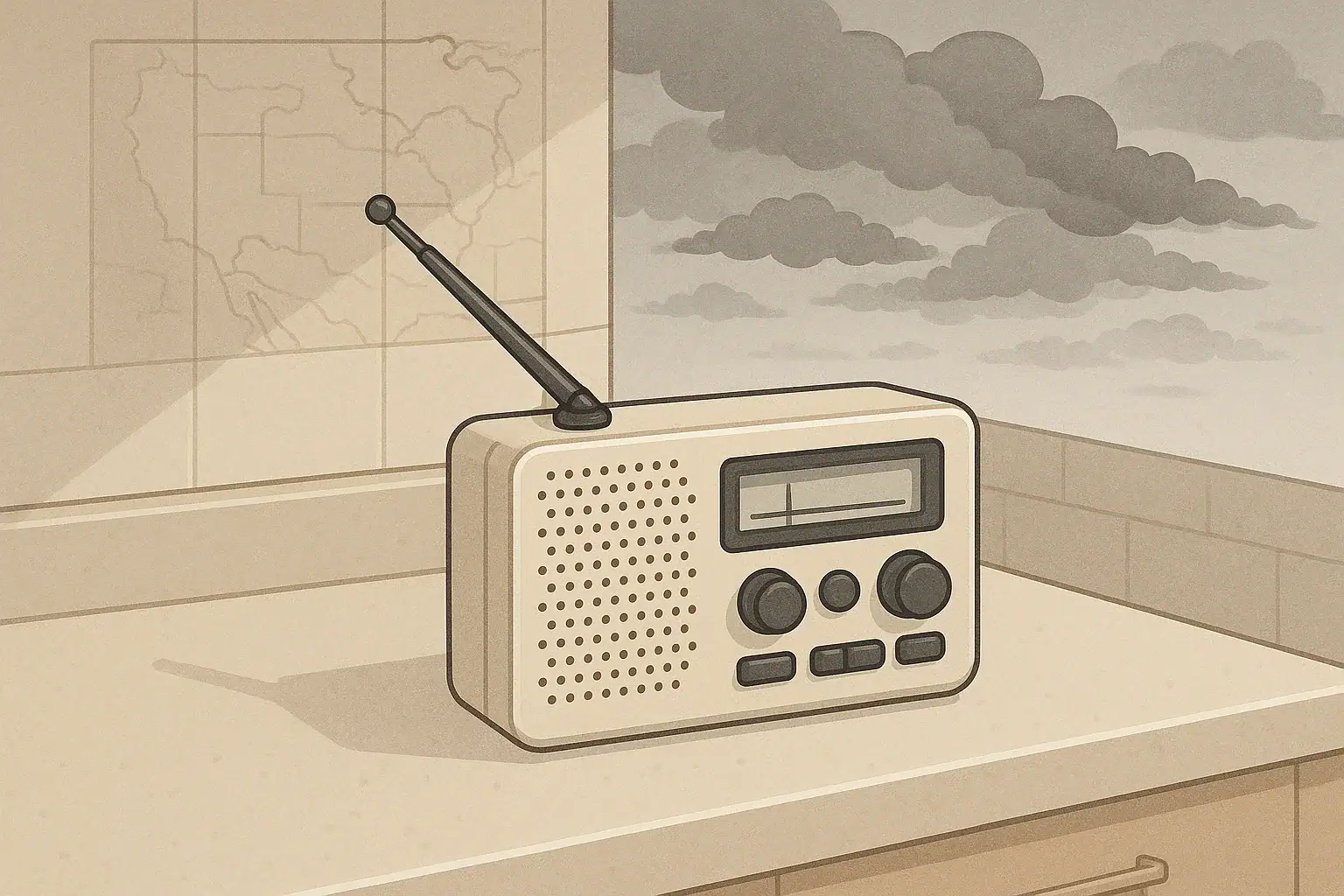
Why SAME alerts matter for your home
Specific Area Message Encoding (SAME) lets a NOAA Weather Radio warn you only for the counties you choose. Instead of hearing every alert for a wide region, your radio listens for digital county codes and sounds the alarm only when a warning includes your selected areas.
For most households, the main goal is simple: set up SAME so your radio alerts you for your home county (and any nearby counties you care about), then test it once and leave it powered and ready.
Step 1: Find your NOAA Weather Radio county codes
Each county in the United States has a six-digit SAME code. You can look up your codes in a few ways:
- Search online for: “NOAA SAME county codes” plus your state name.
- Use the county code lists on the official NOAA Weather Radio information page and follow links for your state.
- Call your local National Weather Service office or emergency management office and ask for the SAME code for your county.
Write down:
- Your home county code (the one you must have programmed).
- Optional nearby county codes you care about, such as where you work, where your kids go to school, or where close family lives.
Step 2: Decide which areas you want alerts for
Before you start pressing buttons, decide how wide you want your alert area to be. This keeps your radio useful instead of noisy.
Common choices:
- Home county only – Best if you mainly care about warnings that affect your house and immediate neighborhood.
- Home + neighboring counties – Helpful if you commute, live near a county line, or have kids’ schools or caregivers in a neighboring county.
- Multiple locations – If you split time between two homes, you can often store several county codes so the radio covers both areas.
More counties means more alerts, including some that may not affect you directly. If you are easily woken or startled, keep the list short.
Step 3: Program SAME alerts on your radio
Every NOAA Weather Radio model is a little different. Always follow the instructions in your specific manual. If you do not have the manual, many manufacturers post them on their websites.
Typical steps look like this (names of buttons and menus will vary):
- Switch to programming mode.
Look for a Menu, Program, or Set button. Use the arrow keys or tuning knob to move through options. - Find the SAME or county code menu.
It may be labeled SAME, County Code, Location, or Area. - Choose the alert area mode.
Common options include:- ANY – Alerts for all areas the station broadcasts. This can be very noisy.
- SINGLE – Alerts only for one county code.
- MULTIPLE – Alerts for several county codes you enter.
For most homes, SINGLE or MULTIPLE is best.
- Enter your county code(s).
Use the number keys or tuning controls to enter each six-digit code you wrote down. Confirm or save each one before moving to the next. - Save and exit.
Follow the prompts to save your settings, then exit the menu so the radio returns to normal monitoring mode.
If you are unsure about any step, check the manual or call the manufacturer’s customer support for your exact model.
Step 4: Choose the right weather radio channel
Programming SAME codes is only half the job. Your radio also needs to be tuned to a working NOAA Weather Radio frequency for your area.
To find the right channel:
- Use the station list linked from the official NOAA Weather Radio station directory to see which frequency serves your county.
- On your radio, step through the available channels (often labeled 1–7) until you hear a clear broadcast with minimal static.
- Set the volume so you can hear the voice clearly during normal listening, but rely on the alert tone to wake you or get your attention.
If you cannot find a clear station indoors, try moving the radio near a window or an exterior wall. Some homes, especially those with heavy construction or in valleys, may need the radio placed higher or closer to an outside wall for better reception.
Step 5: Power, placement, and testing
A NOAA Weather Radio is most useful when it keeps working during power outages and when you are asleep.
For everyday setup:
- Power: Plug the radio into a reliable outlet and install fresh backup batteries if your model supports them. Check the batteries at least once a year.
- Placement: Put the radio where you can hear it from the rooms you use most, often a bedroom or central hallway. Avoid placing it where loud appliances or closed doors will muffle the alert.
- Volume and alert tone: Set the alert volume high enough to wake light sleepers, but not so loud that it will cause panic or hearing discomfort.
To confirm it works:
- Listen for the weekly test. Many National Weather Service offices send a test alert once a week, usually on a weekday. Your radio should sound an alert tone and display a test message.
- Use any built-in test function. Some radios have a Test button or menu option that plays the alert tone without waiting for a real broadcast.
If tests do not trigger an alert, recheck your SAME codes, channel selection, and antenna position, then consult the manual.
Basic alert settings and quiet hours
Many SAME-capable radios let you adjust how and when alerts sound. Use these settings so the radio fits your household instead of becoming a nuisance.
Common options include:
- Alert types: Some models let you disable alerts for lower-level events (like routine tests) while keeping life-threatening warnings active. Be cautious about turning alerts off; follow guidance from your local emergency management office if you are unsure.
- Alert duration: You may be able to set how long the alarm tone sounds before it stops automatically.
- Backlight and display: Dim the display if bright light bothers sleepers, but keep the radio where you can still see it if you wake up to a tone.
Do not rely only on a phone for weather alerts. Phones can be silenced, lose signal, or run out of battery. A properly set up NOAA Weather Radio is a useful backup.
Keeping your SAME setup up to date
Your county code will not change often, but your situation might. Review your settings when:
- You move to a new home or change counties.
- A family member starts regularly traveling to or from a neighboring county you care about.
- You rearrange rooms and can no longer hear the radio clearly.
For broader emergency planning, including weather and non-weather hazards, you can review the guidance on the official Ready.gov emergency alerts page and follow any instructions from your local authorities.
Frequently asked questions
Do I need a SAME-capable radio if I already get phone alerts?
Phone alerts are helpful, but they depend on cell coverage, battery life, and your phone’s settings. A SAME-capable NOAA Weather Radio is a separate, dedicated alert system that can warn you when power or cell service is disrupted, as long as it has power and reception.
Should I program more than one county code?
Program at least your home county. Add nearby counties if you regularly travel there or if a hazard in that county could quickly affect you. If you add too many counties, you may get frequent alerts for events that do not directly affect your home.
Will SAME alerts still work during a power outage?
They can, if both your radio and the broadcasting station have power. Use a radio with battery backup or another non-mains power source so it can keep working when your home loses electricity.
Who should I contact if my radio never receives alerts?
First, confirm your SAME codes, channel, and antenna position using the manual. If it still does not work, contact the radio manufacturer’s support. You can also check with your local National Weather Service office to confirm that a NOAA Weather Radio station is operating and covers your area.
- Simple checklists and realistic planning
- Water, power, lighting, and pantry basics
- Family plans (kids, pets, seniors) and seasonal prep
Affiliate disclosure
As an Amazon Associate, we earn from qualifying purchases. Some links on this site may be affiliate links. If you buy through these links, we may earn a small commission at no extra cost to you. This helps support our content. Learn more.